How to Set Up Two-Factor Authentication (2FA) in the Booster NZ app
Step 1
Log in to the Booster NZ app
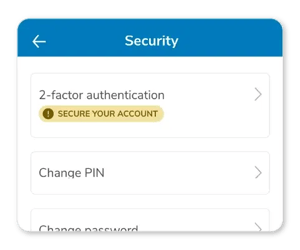
From the app menu, go to the Security screen.
Step 2
Select 2-factor authentication
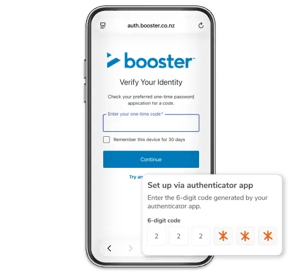
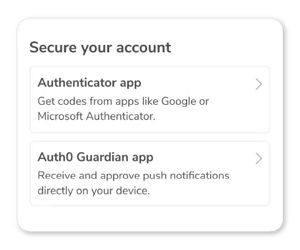
And choose your preferred verification method: a compatible authenticator app, or Auth0 Guardian
Follow the on-screen instructions to complete setup.
Step 3
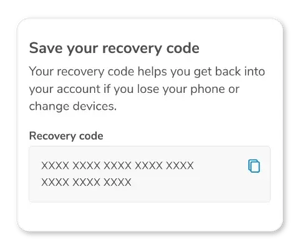
Once your setup is complete
You’ll be given a recovery code. Save this somewhere safe. You may need it if you lose access to the device or app you use for 2FA.
You're all set! Protected features are now available whenever you sign in.
Why set-up 2FA now?
Better protection
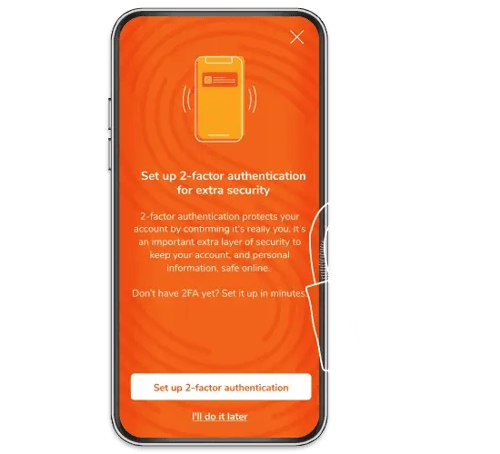
Two-factor authentication helps protect your account and personal information by confirming it's really you when you sign in.
Quick to set up
Setup only takes a few minutes, and we'll guide you through the process in the Booster NZ app.
Choose your verification method
Choose the available verification method that works best for you and use it whenever required to access protected features.